


How to make Subtle Motion Pictures
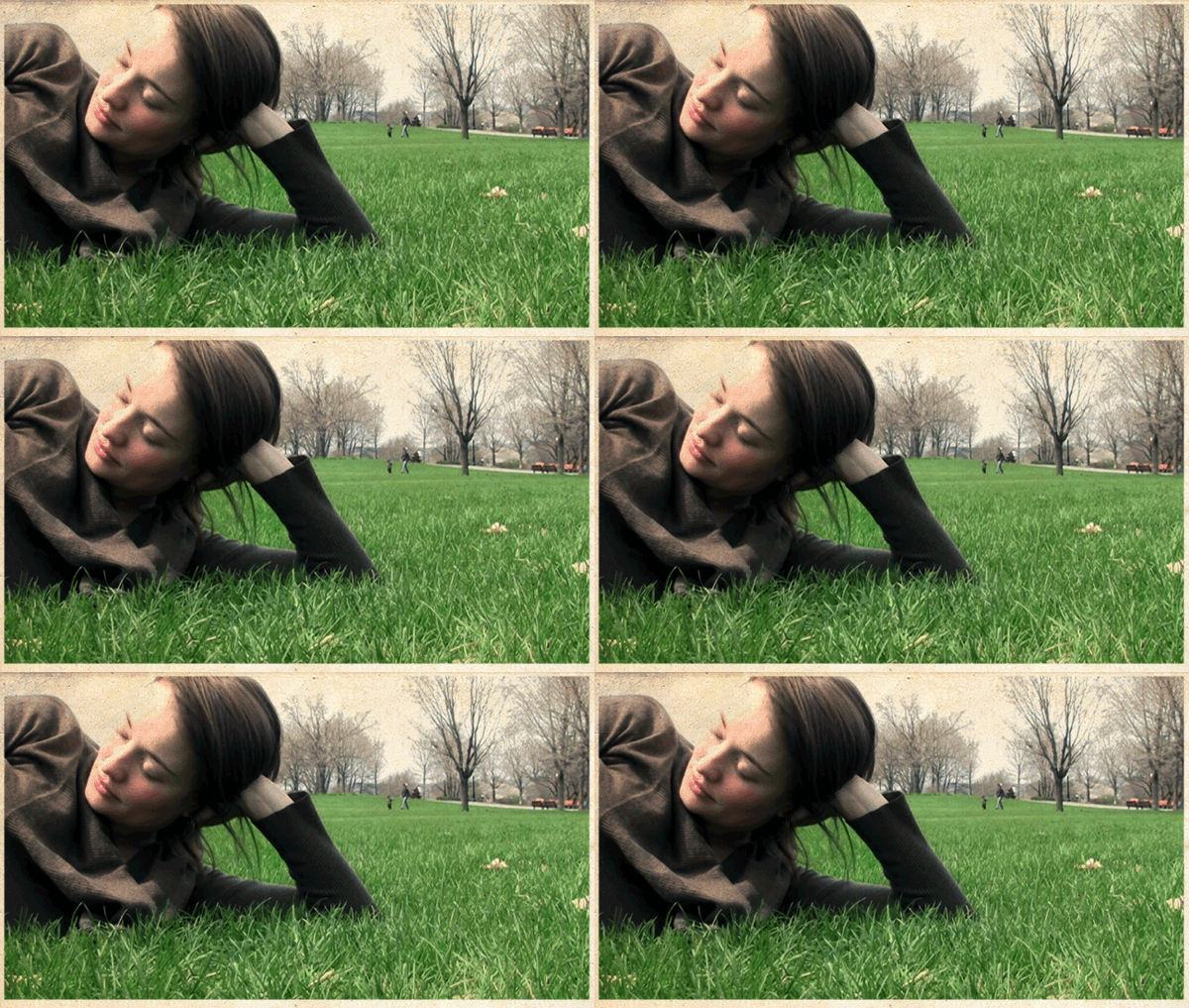
I never thought I would make an animated GIF but here I am. After first seeing their potential beauty here: http://iwdrm.tumblr.com/ I decided that I needed to make one. I am not sure how the original creator ( or others for that matter ) make their own but this tutorial will explain how I got the image above (approximately after about 2 hours of shooting and editing):
Well having capable software is what really helps this be painless. I am sure there are alternatives but I used the following supplies and software for the following reasons:
- camera that can take some decent quality film ( I used a small handheld )
- a tripod to keep shot as steady as possible ( I used a small gorillapod )
- Adobe Premiere Pro ( to import film and export to frames )
- Adobe Bridge ( to import all files into a single Photoshop file painlessly )
- Photoshop ( to make the GIF )
And here is a summary of the basic steps to creating this effect before getting into the details:
- capture movement on video ( keep subject and camera as still as possible )
- export the individual frames as images from the film ( I used Premiere )
- import the frames into Photoshop as layers
- basically group all frames but the one (this one should be base layer) you want to represent all elements in the background
- put a mask on the group of images(not including base layer) to cover all but the area you want movement
- And finally create and export your GIF
Step 1:
First you want to get as steady a shot as possible while having something moving. This is where the camera and tripod come in handy. You will want the subject as still as possible; but you also want movement! … so basically something like a slight wind is helpful here ( I was lucky there was some that wasn’t too powerful). I am sure the more creative out there could come up with some other options in this respect.
Step 2:
Second you want to make sure you capture a lot of film ( and from many different angles). This is important enough to be its own step as far too often I have taken the “perfect shot” only to later find out it was out of focus, or ruined in some other manner. Definitely an important rule of photography I don’t want any to miss, even though this not technically photography.
Step 2:
Import film into a video editing program such as Premiere. In Premiere that involved selecting and moving[setting in and out points and dragging] only a small the part of the video I wanted to the main timeline.
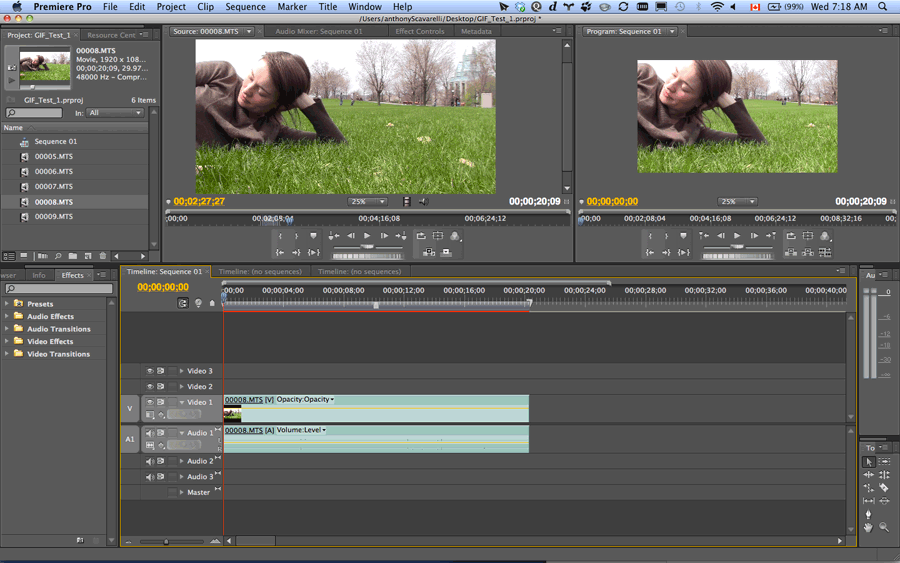
Using Premiere to Setup Export
Step 3:
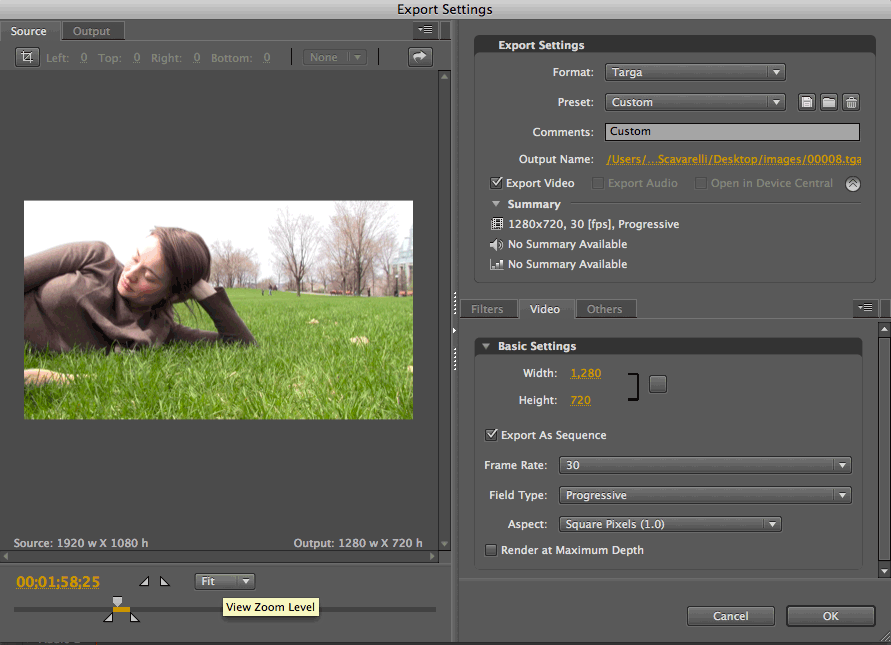
Now you must export each frame as an image into a folder. Go to File > Export > Media and the following image are the settings I used ( I used targa as it it a lossless — non-compressed — image). Make sure you set the input to an empty folder that you want to contain all your images.
Step 4:
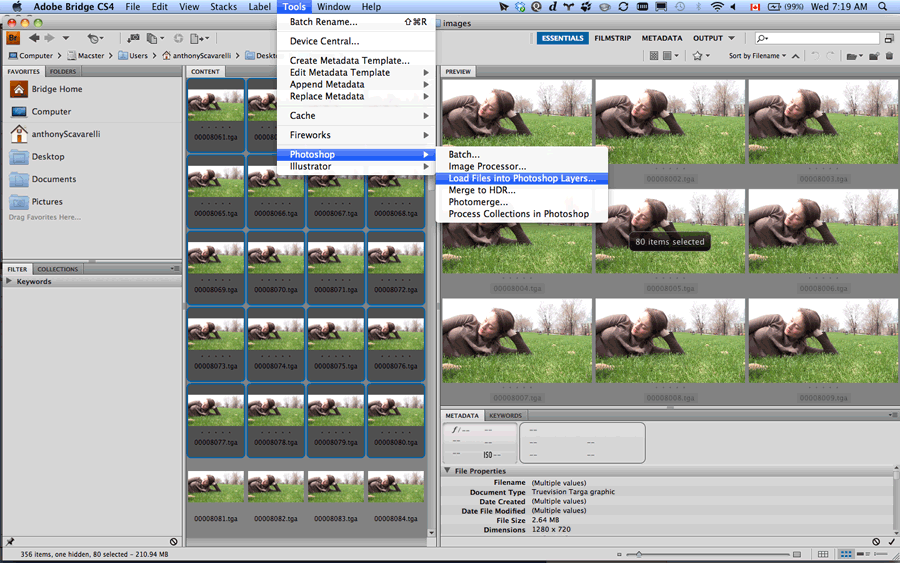
Shift-Select all the frames from the folder you exported them all to folder using Adobe Bridge. Then from the menu select Tools > Photoshop > Load all files into Photoshop Layers … This helps save a great deal of time importing every image separately into a Photoshop file. I selected about 80 or so images to be able to sort through. Photoshop should now open automatically and starting loading all files into layers …
Step 5:
Now that we have everything into Photoshop we can finally get to the good part! First we want to select a suitable background image ( the base image that will never change ) and move it into the base layer ( perhaps even lock it as well ). I chose mine based on a few arbitrary requirements: Namely attractive composition, and I wanted to solidify the image as a still image and thus chose a layer with some people in midstep [see background top-right].
Tip: Holding down alt and selecting the visibility icon on each layer hides all expect the one you selected. Doing so again to the same layer goes back to showing all.
Step 6:
Next step, again for arbitrary convenience, is to group all other layers into a single group so that a single mask can be applied to all. I did a rough selection with the lasso tool then hit this button in the layers menu.
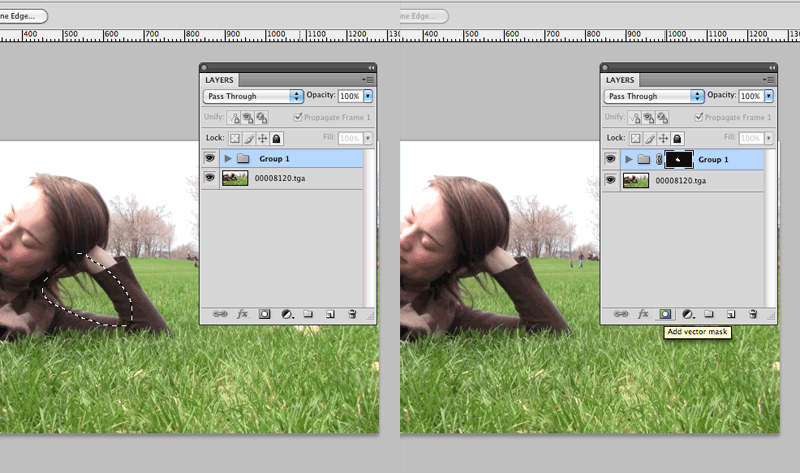
Step 7:
Now to create the GIF. Open up your animation window by going to Window > Animation . From here select the fly-out menu to change the default ( well in CS4 anyhow ) timeline option to theConvert to Frame Animation view. This following image illustrates:
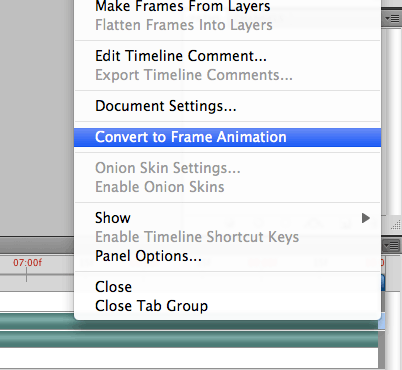
After this you want to create your GIF. Hit the new frame button then select which layers you want visible, rinse and repeat until you have a short animation that is long enough not to look too obviously repeating ( I did it for about 15 frames ); then go back and do the same thing in reverse to add another 15 frames ( this is to get the seamless “looping” action ). Here is a straightforward tutorial: http://psd.tutsplus.com/tutorials/tutorials-effects/how-to-animate-a-gif-inside-of-photoshop-cs4/
After this I also went through each layer and adjusted colouring, tones, and saturations ( use an action for this to save time and be consistent ). Also threw an old paper texture as top layer ( blendmode set to multiply) to get the “old look”, crop[out our dog's foot in corner] and tada! almost done.
Step 8:
File > Save for Web and Devices as a GIF and fine! You should now have your own subtle GIF.
Some Tips from some fellow Redditors ( for best results ):
- Should selectively narrow the color palette BEFORE you compress the image into a gif. That will let you control any color banding that may happen when working with only 256 colours.
- For better quality you may want to use an animated PNG ( instead of a .gif) though not all browsers support them requiring a Flash fallback.
- Match the frame rate of your input video with your output sequence. You probably won’t notice the difference between 29.97 fps and 30 fps (as is the case here), but for European users, the difference between 25 fps and 30 fps is very much noticeable. And a bi*** to correct afterwards.
Tutorial From - Anthony-scavarelli

No comments:
Post a Comment